The Only CRM Data Migration Project Plan You'll Ever Need
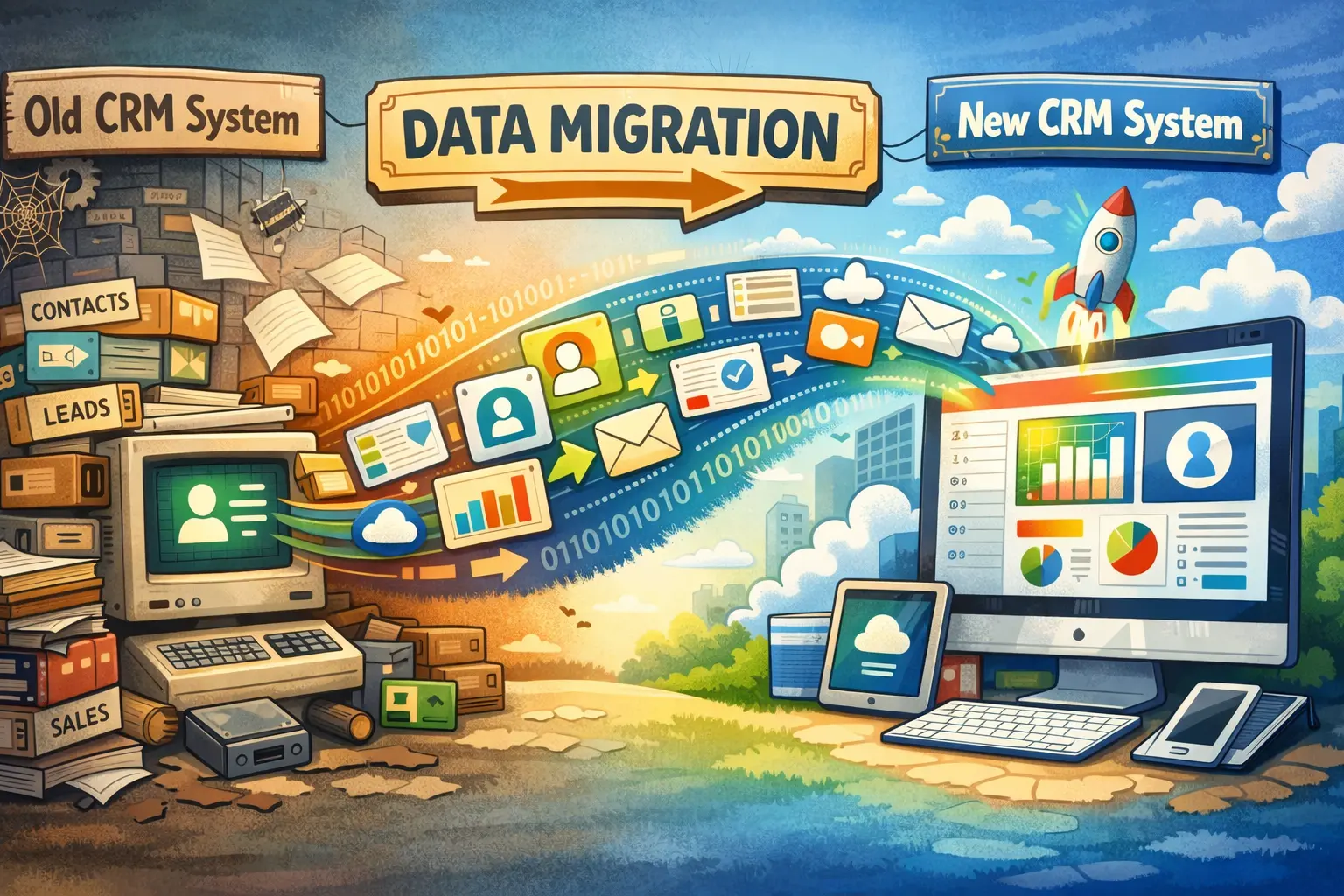
Migrating from one CRM (either on premise or cloud based) to another is a massive undertaking, one that can result in loss of critical data, significant downtime, drops in productivity, and loss of revenue. It's a task that even seasoned CRM architects like myself can't afford to take lightly. You'll need a solid understanding of the architecture of both the incumbent CRM and new. In addition, it's important to get as much cooperation and support from the new vendor as possible. The old one may be much more reluctant to assist, given they are losing the business.
It's a heavy lift, but not impossible if you adhere to this tried and true CRM data migration strategy that I've been using for over a decade.
CRM Migration Project Plan Overview
Phase 1: Pre-Migration
- Data cleansing and deduplication
- Object and field rationalization
- Stakeholder alignment and vendor coordination
Phase 2: Data Architecture & Mapping
- Object/Module-level mapping
- Field-level mapping and transformations
- Validation against new CRM constraints
Phase 3: Test Migration
- Sample data migration
- Validation and error handling
- End-user review and feedback
Phase 4: Full Migration &Cutover
- Final data freeze
- Production migration
- Go-live validation
Phase 5: Post-Migration Stabilization
- Data audits
- User support
- Decommissioning legacy CRM
Step 1: Clean House
You don't want to bring stale leads, inaccurate data, and duplicate records into your shiny new CRM. If your current CRM isn't equipped with smart cleaning features, you will need to export your data and cleanse it externally. I've built a couple web-based free tools to help with this. If you need a smart de-duplicator that's safer than Excel, try my Smart CRM Dedupe Tool. And, if you're looking for more complex data cleansing, check out JetPurge.
However, if you have datasets that exceed 10MB, most web-based tools won't cut it. That leaves you with two choices: either chunk the data into smaller bits (not recommended) or use local tools like Python. My go-to Python tool is Pandas. It's a powerful, highly efficient library that allows you to dump complex, messy data into dataframes for easy, accurate cleansing. It's also a great way to translate the data structure from your current CRM into an import-friendly version for your new one. Once the data has been thoroughly scrubbed and old, irrelevant records are either archived or deleted, it's time to move onto the next step, Object Cleaning.
Step 2: Object Cleaning
Once data has been scrubbed it's time to look at the custom fields within the Objects/Module of your CRM. Over time, especially if you've had changes in management at your company, your CRM can be filled with tons of custom fields that no longer serve a purpose. This happens more often than you would think and can result in cluttered user interfaces and inaccurate data entry. This is especially true if you have redundant fields like Fee Type and Type of Fee.
Export the structure of each object you plan to move over and start trimming the fat. Move only what is needed and dump the rest. If you have data present in the fields you no longer need, consider moving them into the description or notes section of the relevant record.
Step 3: Object Mapping
This is where you bridge the gap between your old CRM's structure and your new one. You need to map every field from the cleansed, existing objects (Leads, Accounts, Contacts, Opportunities, etc.) to the corresponding fields in your new CRM. If you don't get this right the first time, it will result in hours of re-work if you catch it before your launch date with the new tool. If you notice something went awry with the mapping post-launch, the mistake could be much more costly. The best way to do this is to create a detailed mapping table.
| Old CRM Object | Old Field Name | Old Field Type | New CRM Object | New Field Name | New Field Type | Notes/Transformation Logic |
|---|---|---|---|---|---|---|
| Lead | First Name | Text | Lead | First Name | Text | Direct Mapping |
| Lead | Last Name | Text | Lead | Last Name | Text | Direct Mapping |
| Lead | Custom_Fee_Type | Picklist (A, B, C) | Lead | Fee_Classification | Picklist (1, 2, 3) | A -> 1, B -> 2, C -> 3 |
| Lead | Old_Status | Picklist | Lead | Status | Picklist | Map 'Contacted' to 'Engaged', Archive 'Stale' |
| Account | Annual_Revenue | Currency | Account | Revenue | Currency | Direct Mapping |
Pay special attention to field types. All CRMs essentially do the same thing but have vastly differing system architecture. A picklist value in one application may have a different field type entirely in another. Consult vendor documentation or a qualified consultant before doing any heavy lifting. A picklist in the old CRM might need to be mapped to a different value set or a different field type (like a simple text field) in the new CRM. Document any transformation logic clearly, as this will guide the actual migration scripts or tools.
Step 4: The Test Migration
Before you dump all your data into the new CRM, you should perform a test migration on a much smaller scale. Use a representative sample dataset of your cleaned and properly mapped data. It's important to avoid random sampling as you run the risk of over or under-representing certain record types. Here's how I choose representative samplings:
- Leads of each status (new, contacted, stale, converted, etc.)
- Old and new records (within last 30 days, 1 to 3 years old, 5+ years old)
- Bad data (records missing required fields, malformed freeform text, etc.)
- Records from different departments (helps identify inconsistencies; use the created by and last modified by fields)
Test Migration Objectives
- Validate Field Mapping: Ensure data lands in the correct fields and maintains its integrity.
- Test Transformation Logic: Confirm that any complex data transformations are executed correctly.
- Identify Errors and Gaps: Look for any records that fail to import or exhibit unexpected behavior.
- Confirm User Experience: Have a small group of end-users test the imported sample data.
Upon completion of the test migration, document all findings and use them to refine your cleansing, mapping, and migration plan before proceeding to the full-scale migration.
Step 5: The Real Deal. Full Scale Migration
Once you've completed testing several small-scale migrations, it's time to move the production data into the new site. During this time, it's important that users refrain from entering data into the old system. The best time to migrate CRM data varies but, as a general rule of thumb, migrate when users have time to cease data entry and begin data validation. There needs to be a freeze of new data being entered into the old system to prevent you having to re-run the migration multiple times.
I've seen importing done a few different ways, but the most common is via CSV imports. If you need to do imports for records that need to relate to each other, you'll have to import them in the right sequence. Here's how I approach this task using the hub and spoke method:
- Start with the hub: Depending on your setup, this is either the Contact or Account. It's the record that all other records need to relate to.
- Grab the new record ID: Once the hub records have been imported, you'll need to grab their new IDs to relate them to other record imports.
- Move the spokes into the system: Add related tickets, service requests, notes, and anything else your Contacts or Accounts had in the old system.
This order is critical, as importing child records before their parent records will result in orphaned data or failed imports. Be sure your new vendor allows you to include the original user who created the record in the created by field. If not, it will appear as if the user that ran the import authored and modified each record.
Step 6: Post Migration Cleanup and Decommission Decision
Even perfectly planned migrations introduce errors. This phase is all about finding the errors and correcting them before releasing the new system into the wild. End users will be of great help here as they are most familiar with what clean data should look like. Gather feedback from them and implement changes accordingly.
When you're finally satisfied with the final product, it's time to agree on a decommission date for the old system. How long you should keep the system active will depend on your needs and the confidence the organization has in the migration. To save a little money and ensure you have access to your old data, consider exporting your old data and storing it in SharePoint or a self-hosted database.
Make Difficult Migrations Success Stories with Super Easy CRM
CRM migrations are tough, expensive, and frustrating for most people who attempt to go it alone. However, with the right project plan, vendor support, and documentation, it can be done with minimal downtime and data loss. While there is no one-size-fits-all solution, our battle-tested project plan is your best chance at success. If you're looking for assistance with your migration or want help cleaning up your CRM, reach out to us anytime at contact@supereasycrm.com.

Posted by: Matt Irving on 01/26/2026