
When I’m not building CRM solutions or pushing out new features for Super Easy CRM, I'm spending a lot of time in Power Automate, fine-tuning and deploying bots to eliminate time-wasting, error-prone tasks across different workflows. Power Automate is my favorite RPA solution right now. It’s almost as powerful as UIPath, but with an easier user experience and built-in integrations for Microsoft tools like SharePoint, Teams, and Exchange.
Power Automate comes in two flavors: web-based and desktop. While both can help automate workflows, they serve very different use cases. Here’s how they stack up, and what to watch out for.
Power Automate: Desktop vs Web
Web Version aka Cloud Flows
The web version of Power Automate runs entirely in the cloud. It’s perfect for automating actions across SaaS platforms without installing anything locally. The DesktopYou can create flows that respond to emails, process forms, push data into CRMs, update SharePoint lists, and so on.
Cloud flows work well when your data and apps live online. They're reliable, efficient, and scalable. But they don't have access to your local machine, so they can't interact with desktop apps, local files, or on-screen data.
This version is great for teams using Microsoft 365. You can trigger flows from a Teams message, an Outlook email, or a file dropped into a SharePoint library. But once your work touches anything outside that ecosystem, or requires interaction with legacy apps, you’ll quickly run into limitations.
Another factor to consider is licensing. While the basic connectors are free to use, many useful services require premium connectors. These include platforms like Salesforce, Adobe Sign, SQL Server, and even some Microsoft products like Dataverse. Using premium connectors means stepping up to a paid Power Automate plan, and costs can rise quickly depending on how many flows you run and how often they execute.
Desktop Version aka Power Automate Desktop
Power Automate Desktop runs directly on your local PC, and that's important to understand. Unlike the web version that lives in the cloud, the desktop version is installed and executed from your machine. That means it depends on your local resources, CPU, memory, internet connection, and the stability of your operating system.
If you're serious about building RPA bots with Power Automate Desktop, you’ll want to dedicate a machine to it. If you're not using a remote server (which is the ideal setup for enterprise-grade automation), you can absolutely repurpose an unused PC or older laptop that still has decent specs.
Just make sure:
- It’s always powered on (no sleep mode or shutdowns)
- It stays connected to the internet if you’re interacting with web apps
- It has a stable Windows environment
And you really do lose control of your inputs and outputs if you try to run Power Automate Desktop flows on your main work machine. As soon as a bot starts clicking or typing, your mouse and keyboard are basically hijacked. That’s why using a dedicated box, or at the very least a remote desktop, is so useful. You can let the bot do its thing without interrupting your own workflow.
Minimum specs:
- Operating System: Windows 10 Pro, Enterprise, or Education (build 1903 or later)
- Processor: 1.6 GHz or faster (dual-core or better recommended)
- RAM: 4 GB minimum (8 GB recommended)
- Storage: At least 2 GB of free space
- .NET Framework: 4.7.2 or later
- Browser: Edge (Chromium) or Chrome for browser automation
And yes, it may go without saying, but don’t forget: if the PC times out, restarts for updates, or disconnects from Wi-Fi, your bot will fail. That’s why environment setup is just as important as flow logic. Your automation is only as reliable as the machine it runs on. This is Microsoft’s full-fledged RPA tool. The desktop version lets you build flows that can interact with local software, simulate user input, and automate tasks that live on a Windows machine. It can move your mouse, click buttons, enter text into fields, and read from the screen.
RPA, or Robotic Process Automation, is sometimes confused with traditional bots. But they operate differently. A bot might respond to a chat message or run a script on a backend server. RPA bots, by contrast, simulate a human user. They interact with the screen, move a cursor, read fields, press buttons, and mimic everything a real user would do, except faster and without needing a coffee break.
That’s what makes RPA so useful when you're dealing with apps that have no API or are locked down behind a visual interface. But it also makes RPA incredibly fragile.
RPA vs Programmatic Automation
When possible, always consider whether the task can be handled with API calls. API-based automation is more stable and efficient, especially for structured data. RPA is a last-mile solution when no API exists or when you need to bridge older systems with modern ones.
RPA mimics users. API-based automation acts like a system. One is visual and prone to breaking when layouts or identifiers change. The other is backend and more durable, but sometimes inaccessible without developer credentials or documentation.
If your CRM or finance app gives you a proper API, go that route first. It may take a bit more setup, but it will survive version updates, UI changes, and redesigns far better than a bot clicking through screens.
Which Should You Use?
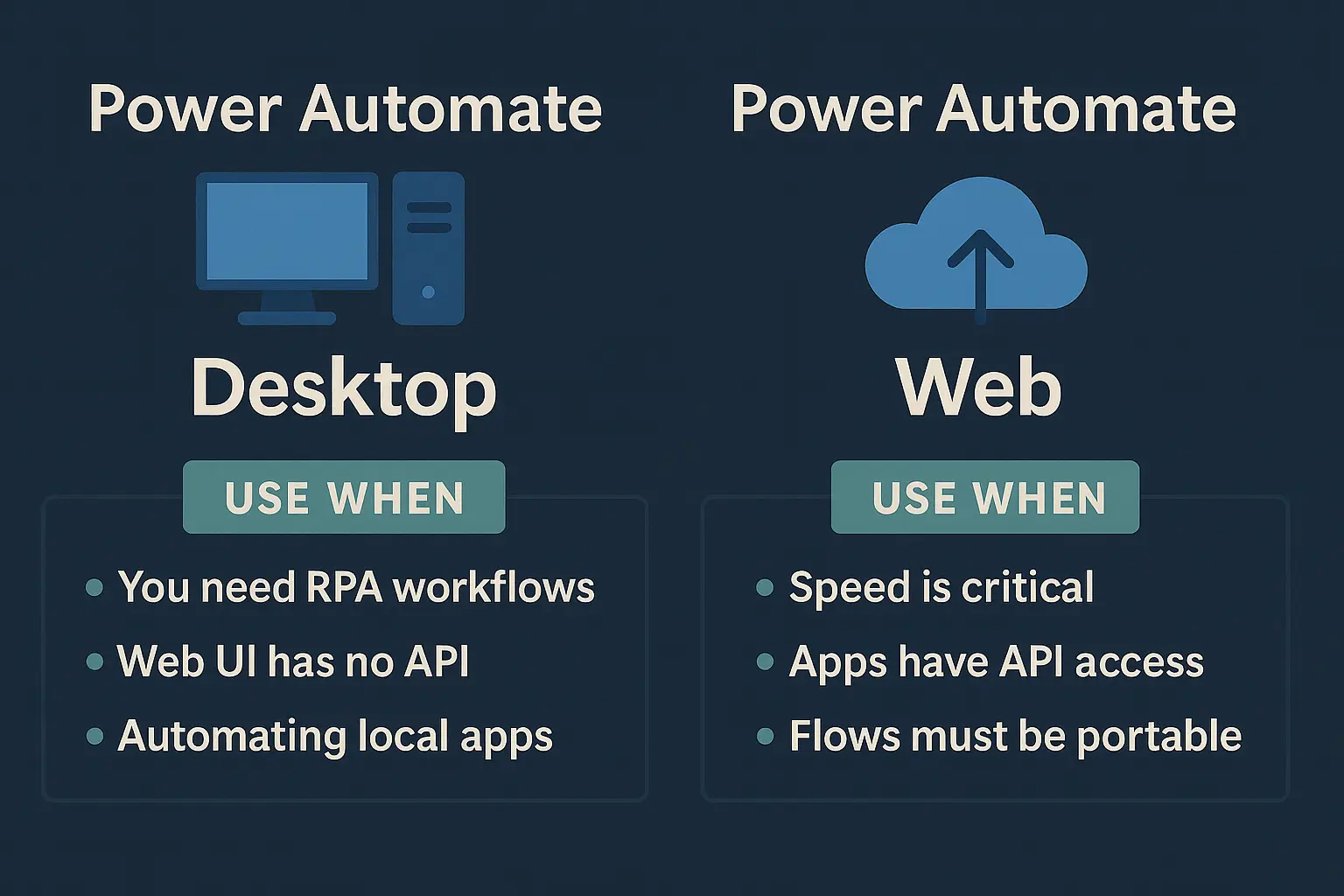
If your work is in Microsoft 365, start with the web version. It’s fast, requires no installation, and handles the majority of business workflows. For desktop apps, legacy software, or tools without an API, go with the desktop version.
Used together, they cover most of the automation needs I run into when building CRM systems. I use cloud flows to manage form inputs, sync contacts, and trigger CRM actions. I use desktop flows when I need to integrate with proprietary software, old billing platforms, or anything that runs locally and refuses to play nice with the cloud.
Just be mindful of web app updates, bot detection scripts, premium connector licensing, and brittle selectors. The more visual the flow, the more likely it is to break.
Modernize your workflow today
Modernize your workflow today. If you're already using Power Automate or just starting to experiment with automation, I can help you turn those fragile flows into reliable systems that save you time, reduce errors, and scale with your business.
Whether you're automating CRM cleanups, integrating with your favorite tools, or building a full RPA system, I offer consulting and setup services tailored to your exact use case.
Need help designing a Power Automate flow? Want to integrate it with your CRM? Curious if an RPA solution or API is the better route?
Reach out to me and let’s build something so efficient it terrifies you.
RPA isn’t perfect, but it’s powerful. With tools like Power Automate, you don’t need to be a developer to build high-impact automation. You just need to think like one: build defensively, monitor regularly, and prepare for things to break when someone else pushes an update.
Start small. Automate one annoying task. Then build from there. The time savings add up fast, and the more you learn how these flows work under the hood, the more you'll be able to spot issues before they become outages.
And don’t sleep on integrating with tools like my free deduplication software or using my CRM maintenance checklist to guide your automations. Power Automate can do a lot, but knowing what to clean, when to run it, and how to monitor results is what takes it from helpful to truly game-changing.